Mass Maintenance
This documentation is intended to guide users on how to perform mass actions in the system. Here you will find detailed instructions and best practices for executing updates, modifications, or maintenance on a large volume of data efficiently and safely. The goal is to facilitate the management of repetitive tasks and optimize time, ensuring data integrity and system functionality.
User Creation
You can create users in Omni through a .CSV file.
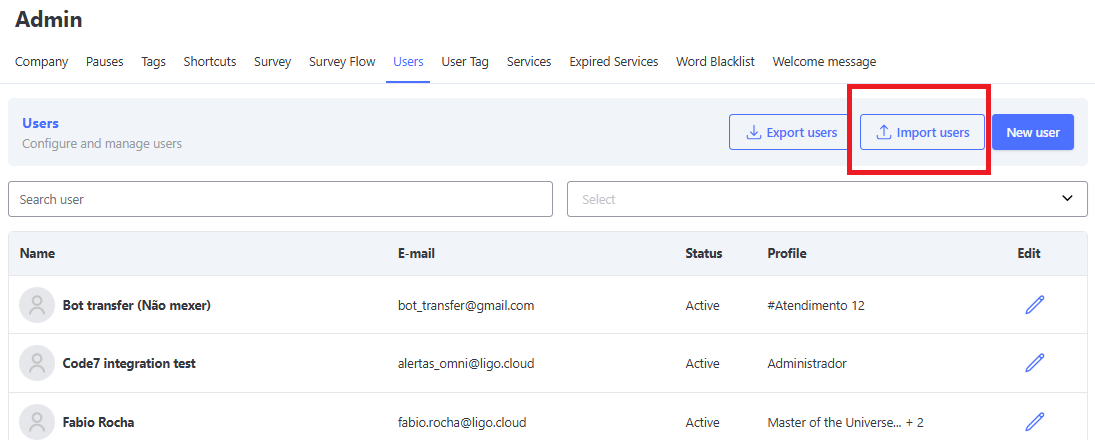
To do this, you can click the Import Users button.
Import Users Button
The data that can be imported in the file are:
- name: User's name (Mandatory Field)
- e-mail: User's email (Mandatory Field)
- phone: User's phone (Mandatory Field)
- password: Password (Mandatory Field)
- service: Service, provide by ID (if left blank, only the "default service" will be added)
- perfil: Access profile, provide by ID (if left blank, the "User" profile will be added, which only grants access to the attendance screen)
- Note: The profile IDs can be accessed by going to the Security menu and then Profile Management, clicking the Export CSV button.
- max_attend: Maximum inbound attendances per user (if left blank, the value set is 0)
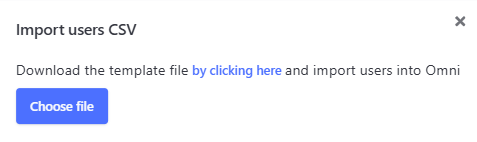
Note: If necessary, it is possible to download the file template and overwrite it with the required information.
User Import Screen
User Migration to Other Services
You can perform user migrations between services in two ways: permanent or temporary.
Permanent Migration:
In this mode, users are permanently moved from one service to another. Once the migration is performed, users do not return to the original service, remaining in the new service continuously.
Temporary Migration:
In this mode, user migration is carried out temporarily, with a specified duration. During the temporary migration period, users use the destination service.
Important: The system is programmed to automatically return all users to the original service at the beginning of the following day, ensuring that all temporary migrations are efficiently reverted overnight.
Step-by-Step User Migration
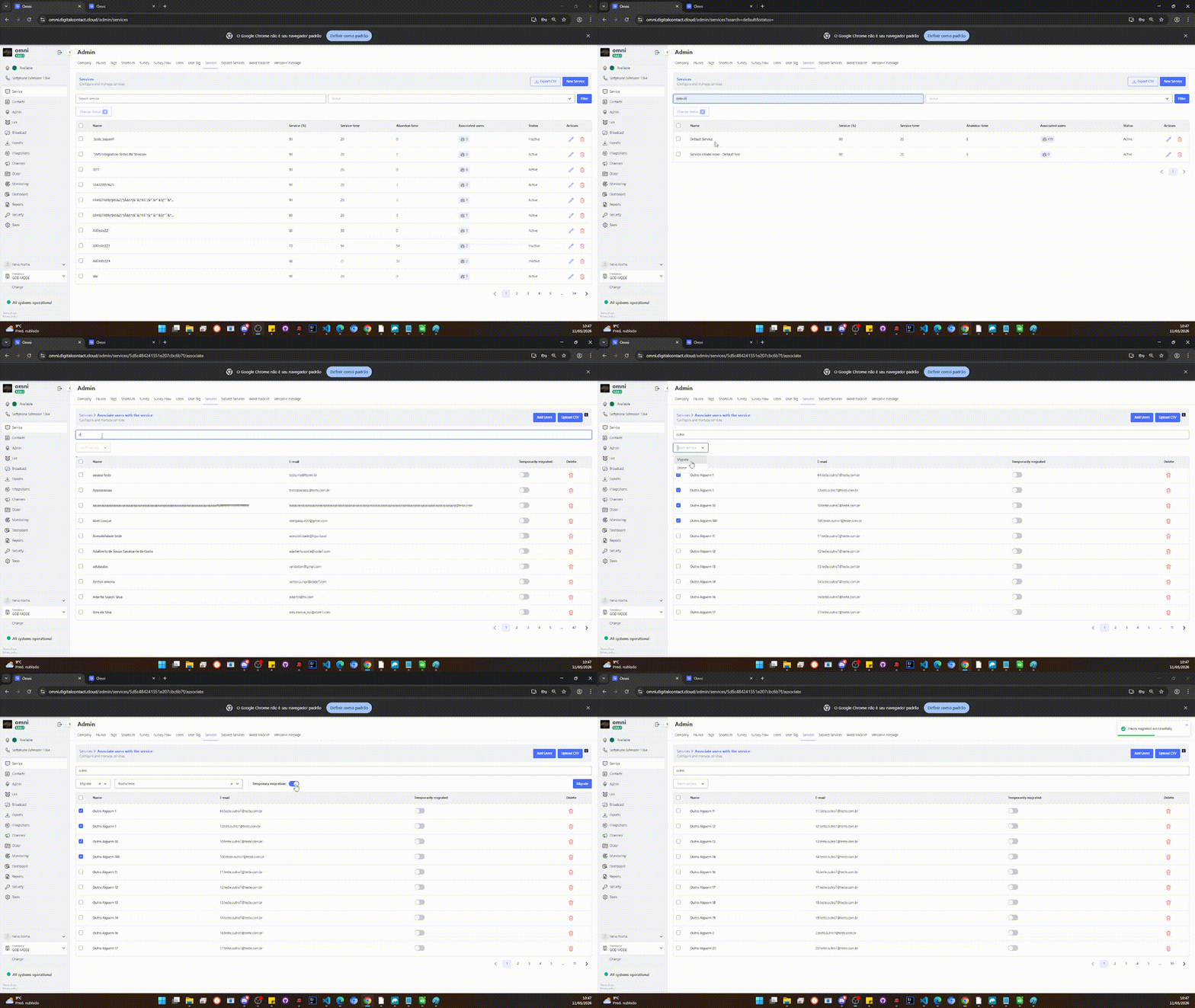
You can perform user migrations between services efficiently by following these steps:
- Navigate to the Administrative menu and click on Services.
- Find the desired service in the list of services and click on the Associated Users column to view the list of users.
- Select one or more users you want to migrate to another service. You can select multiple users at the same time.
- With the users selected, click on the Batch Actions field to access the available options.
- Within the batch actions menu, choose the Migrate option to start the migration process.
- Select the service to which these users will be migrated. Make sure to choose the correct destination service.
- If it is a temporary migration, activate the Temporary Migration button.
- Click the blue Migrate button to start the migration.
- Wait until you receive the migration completed message.
User Migration
Attendance Transfer
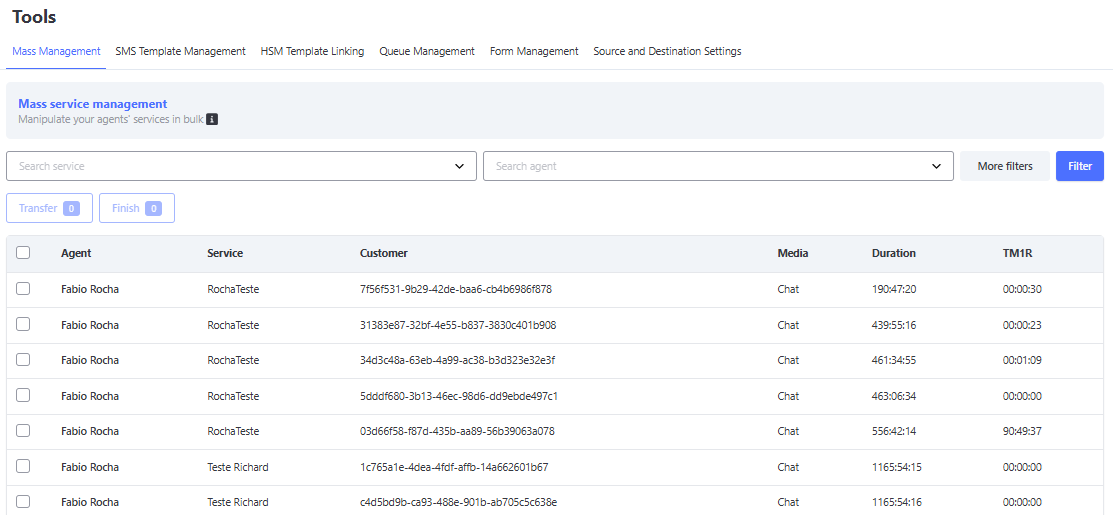
Objective: transfer attendances in bulk to other operators, facilitating shift changes in the operation.
- Select a service in the "Search Service" field.
- Select the attendances that will be transferred.
- Click the "Transfer" button.
Some rules of the screen:
- It will list all items from the "In attendance" screen of Omni.
- You can transfer multiple attendances simultaneously from the same service.
- When selecting the agent, Omni will inform you of the current number of attendances and the agent's capacity for reference.
- The transfer does not enforce the current number and capacity, since the decision will be up to the supervisor whether to proceed with the transfer.
- If an error occurs during the transfer due to a system rule (such as an expired attendance that cannot be transferred), a screen will appear showing the attendances that could not be transferred, while the remaining transfers will proceed normally.
Mass Management
Queue Management: Mass Closure
Objective: Provide the manager with the ability to review and conclude all interactions that are currently in the queue, according to the selected service.
Note: This functionality operates with a queue system, allowing multiple requests to be executed sequentially.
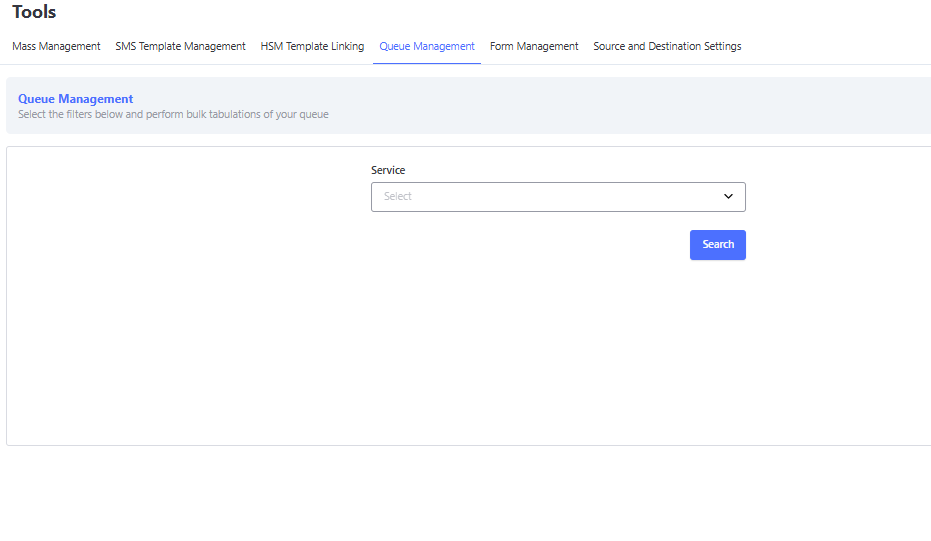
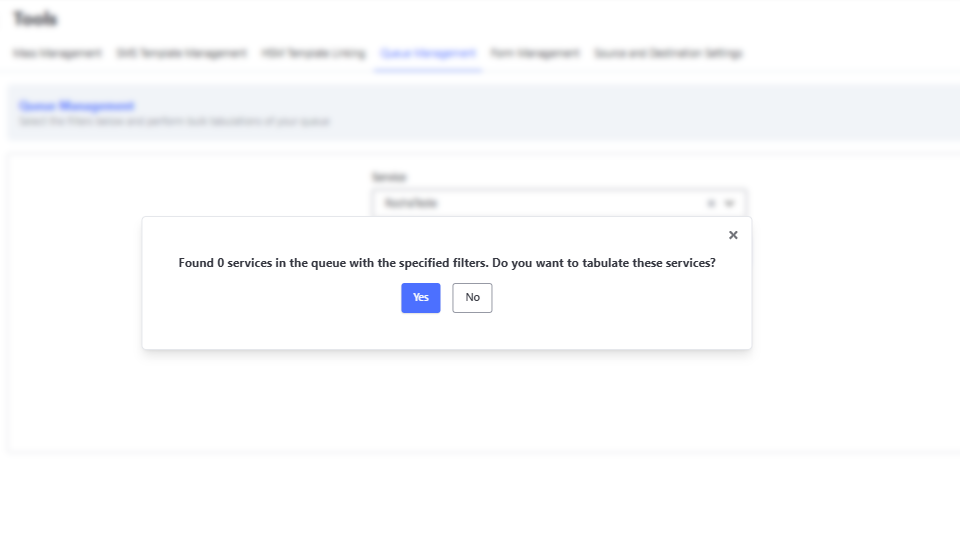
When selecting a service and clicking the "Search" button, a pop-up will be displayed indicating the number of attendances in the queue for that service and offering the option to tabulate or not those attendances.
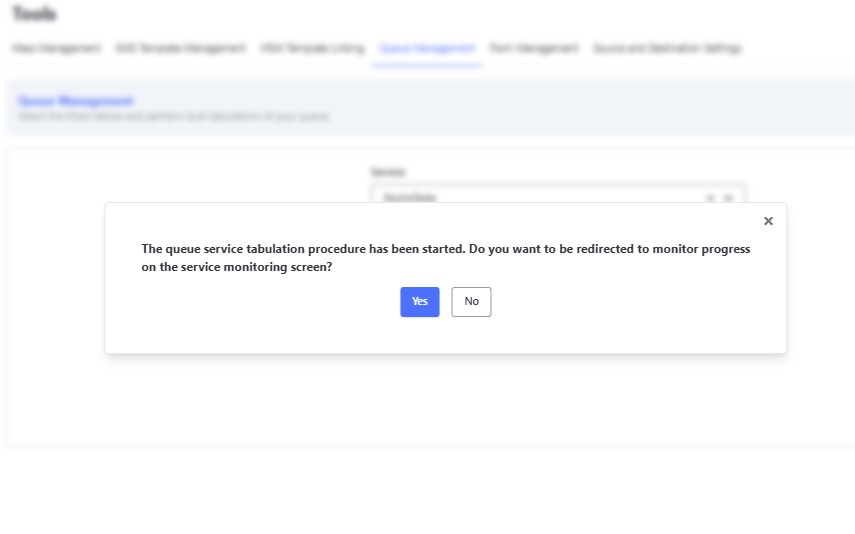
If the option to tabulate the attendances is selected, a new pop-up will be displayed asking whether the manager wishes to be redirected to the monitoring screen to follow the finalization of these interactions.
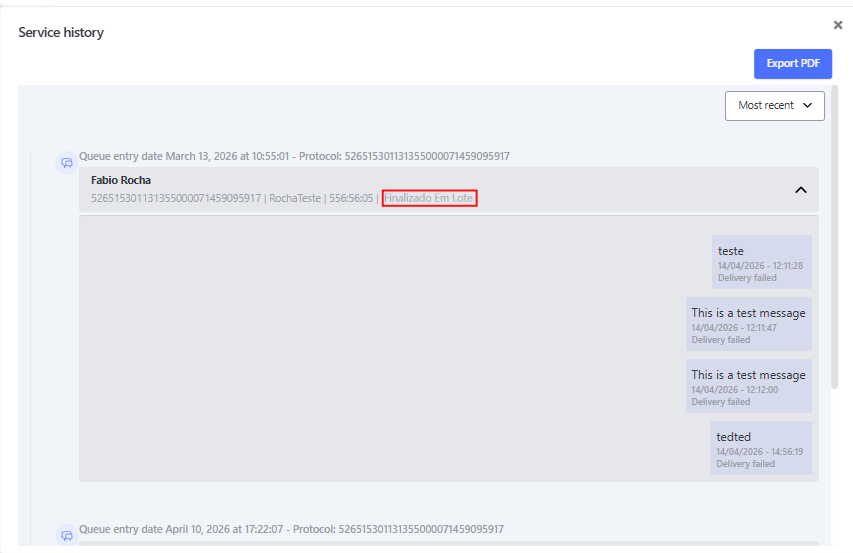
The interactions finalized through this functionality will be tabulated as "Batch Finalized," and their history will be available in the interaction tracking report. As shown in the following example: